Guide
Getting started
From first login to your first locked unit grade.
1. Account
2. School
On Settings → My Schools:
- Create school if you are the first admin, or
- Join school with a join code, then wait for approval under Users.
Start a plan under Settings → Billing (trial when available). Without an active plan you stay on billing.
3. One-time school setup
Do these before heavy grade entry (or use the setup wizard):
- Course categories
- Unit test patterns
- Grade scale
- Report settings
Details: School setup.
4. Year and students
- Years → Manage Years — create a year and its terms.
- Select that year in the year picker at the top of the app.
- Students → Manage Students — add or import students.
- Years → Enrollments — put each student in the year with a grade level.
5. Courses and grades
- Assignments → Manage Courses — courses and units.
- Assignments → Course Enrollments — enroll year students in courses.
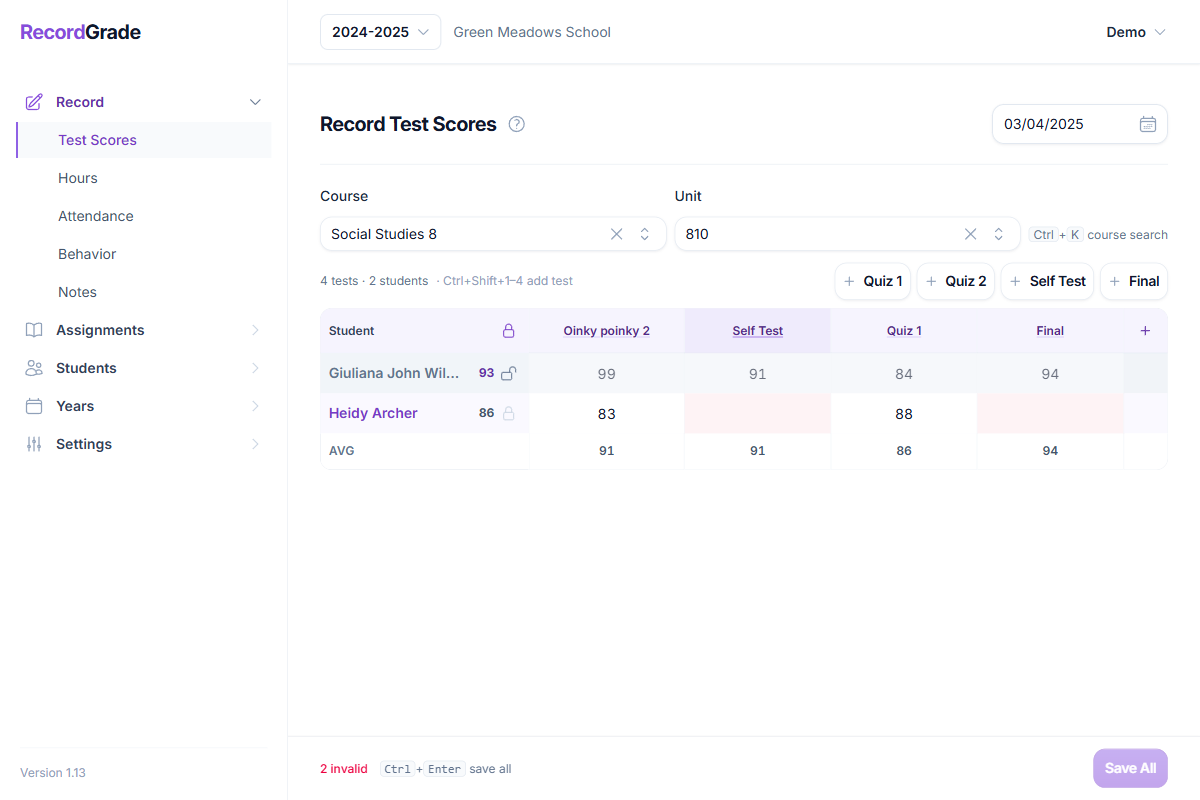
- Record → Test Scores — add tests, enter scores, lock units for report cards.
Next: Recording test scores, Reports, Attendance.
Common questions
I’m stuck on billing and can’t open the gradebook
An active plan (or trial) is required. Open Settings → Billing with a user who has Settings permission. Contact customer support for details if payment succeeded but access is still blocked.
Why is the Test Scores list empty?
Confirm: correct year selected; student year-enrolled; student course-enrolled; you have permission and grade limits that include the student; the course has units.
Do I need terms (quarters) if we only care about a full year?
Yes—create at least one term covering the year. Report cards, behavior, notes, and many date-based features hang off terms. A single “Year” term is fine for some programs.
Where should I go deeper after setup?
Edge cases (retakes, mid-year term changes, attendance-only absences, diploma snapshots) live in the topic guides linked from the docs home—especially Years, Courses, Attendance, and Reports.