Guide
No-grade courses & hours
Credit for work that isn’t scored as a percent (labs, service, electives). Also called “labs” in some screens.
On this page
Setup
Assignments → Manage No-Grade — title, category, credits, whether hours are tracked, and hours required when tracking is on.
Enrollments
Assignments → No-Grade Enrollments
The student must be year-enrolled first. Enroll them in the no-grade course for the selected school year.
- The same no-grade course can be enrolled in more than one year (e.g. Community Service each year). Each year is its own enrollment with its own hours and credit for that year.
- Without hour tracking, enrollment typically grants the course’s full credit for that year’s enrollment.
- With hour tracking, credit for that enrollment is recalculated from hours logged against that enrollment (see below).
Hours & credit
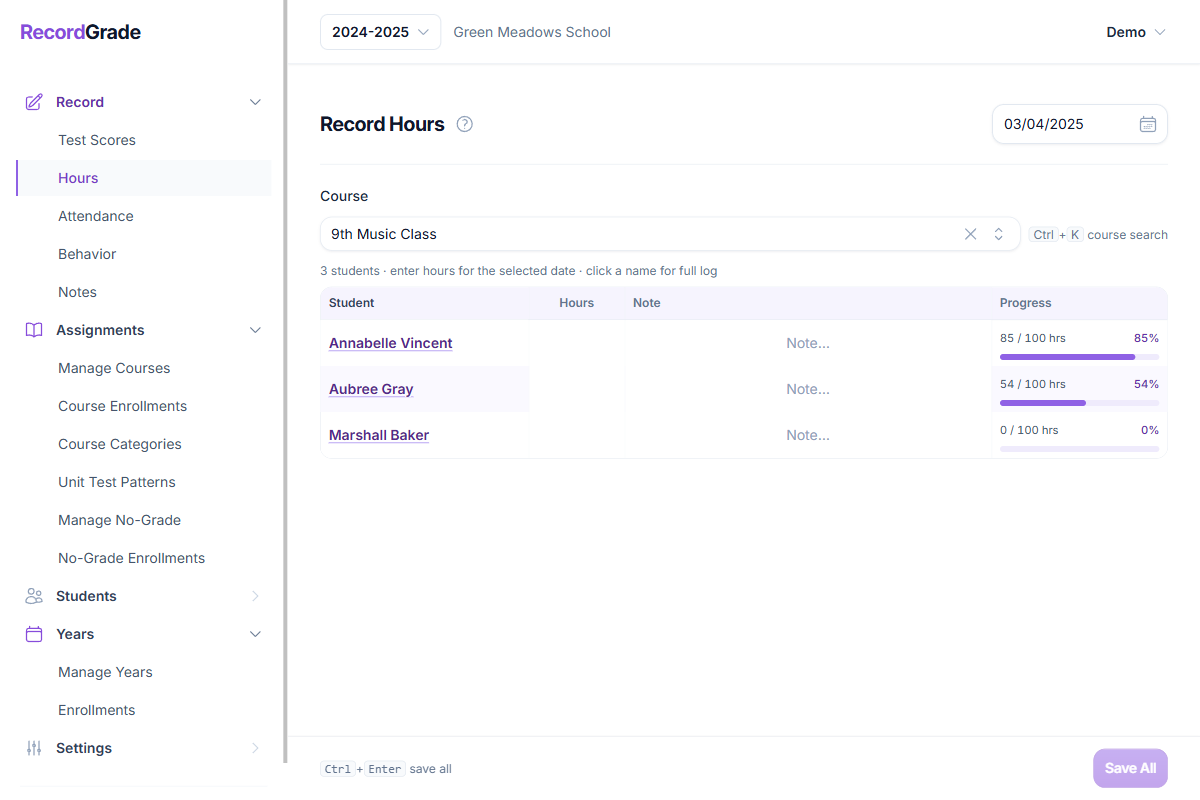
Record → Hours — mass grid by date, or open a student’s log. Year + no-grade enrollment required. Hours can attach to a school term for report-card columns.
When the course tracks hours and has hours required > 0 and credits > 0, credit for the enrollment is:
Credit earned ≈ (hours completed ÷ hours required) × course credits (rounded).
Credit can exceed the course total
That formula is not capped at the course’s listed credits. If a student stays enrolled and keeps logging hours past the required amount, credit earned can go above the course’s credit value for that enrollment. Transcripts and permanent records use the earned credit stored on the enrollment.
Shortcuts: Keyboard shortcuts.
Reports
Transcripts and permanent records include no-grade credit (per year enrollment). Report cards can show hour-based work if “Show No-Grade Courses with Tracked Time” is on under report settings. Progress views can show hours toward required totals; remaining hours use all-time hours vs the course’s hours required (once complete, remaining is zero—extra hours don’t show as negative remaining).
Each enrollment has a result: Pass (automatic), No Pass, or Withdraw. Pass is derived — credit-bearing courses print P when credit was earned; 0-credit courses (typical elementary specials) print P while the student is enrolled. No Pass and Withdraw stay on the record with 0 credit. Unenroll still deletes the enrollment (add/drop). Turn on Show Pass/No Pass for no-grade courses under Settings → Reports to print P (and 0-credit lines) on the transcript and permanent record. NP and W print whenever they are set. P/NP/W are not included in GPA. A letter-grade F is a different mark and can still count in GPA.
Common questions
Can the same student take the same no-grade course in more than one year?
Yes. Enroll them again under the new school year’s year enrollment. Hours and credit for each year are tracked on that year’s enrollment. You no longer need separate course definitions per grade year solely to allow re-enrollment (you still may want separate courses if the program content or credit differs by grade).
What if they log more hours than required?
Credit keeps prorating upward with no upper bound at the course’s credit amount. Example: course worth 1.0 credit, 100 hours required—if they log 150 hours, credit earned is about 1.5 for that enrollment. Manage expectations (or unenroll / stop logging) if you only want to award the listed course credits.
Credit with hours vs without
Without hour tracking, credit is typically the full course credits on enroll (per year enrollment). With tracking, credit follows hours ÷ required × credits for that enrollment, and can exceed course credits as above.
What if I delete lab hours after a term ends?
Hours can be edited/removed from the log; credit on hour-tracked enrollments recalculates. Report cards printed earlier will not update unless you re-print. Deleting a school term that still has lab hours attached will fail until hours are moved or removed.
Do no-grade courses use unit test patterns?
No. Patterns and Test Scores are for graded courses only.
Can I still log hours after No Pass or Withdraw?
No. No Pass and Withdraw freeze that year’s hour log — you cannot add, edit, or delete hours. Existing hours stay on the log. Switch the enrollment back to Pass (auto) if they should keep recording hours (and earning prorated credit, when hours are tracked).
Pass, No Pass, and Withdraw
Pass is automatic: credit-bearing no-grade courses pass when they have credit; 0-credit courses (elementary PE, chapel, etc.) pass while enrolled. No Pass and Withdraw are explicit, keep the course on the permanent record / transcript with 0 credit, and print NP or W. Unenroll deletes the enrollment (as if they never took it). Enable “Show Pass/No Pass for no-grade courses” under Settings → Reports to print P. P/NP/W do not affect GPA. NP is not a letter-grade F.
Unenroll from the year vs from the no-grade course
Removing a year enrollment also removes no-grade enrollments for that year. Graded unit scores for the year are separate and kept; re-enroll in the year and the no-grade course again if they continue hours next term of the same year. See Years & enrollments.