Guide
Lesson planning
Needs the Lesson Planner permission. Does not create grades or transcript credit.
On this page
Pieces
- Lesson plan — belongs to a course or the school; ordered lessons (title + optional body); reusable across years. School plans (chapel, assemblies, grade meetings) are not tied to a course. Lesson bodies support headings, lists, text color, and highlight.
- Year schedule — which plan is active this year, meeting days, optional times, optional start date, skips, bumps, doubles, and stretches. One plan per course per year; several school plans may be active in the same year.
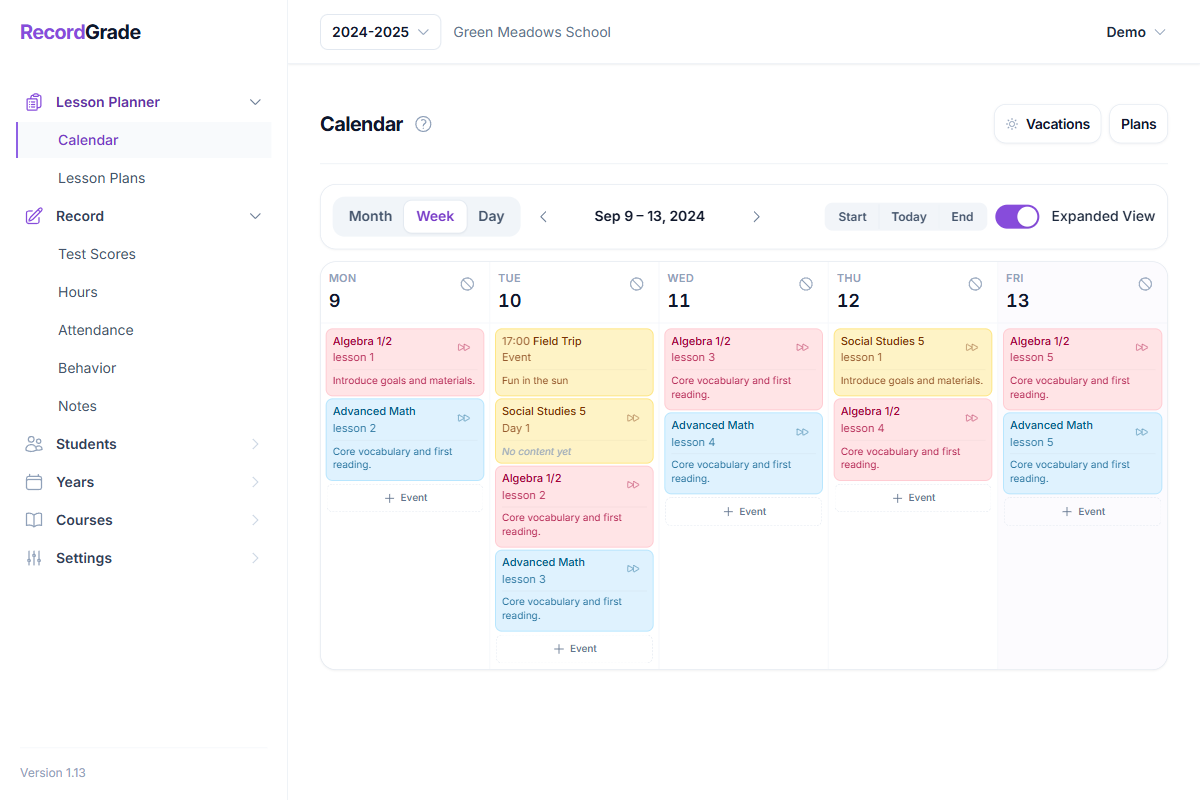
- Year calendar — lays lessons on meeting days (skips weekends, vacations, no-school dates) plus freeform events.
Build and assign
Lesson Plans
- Select a course or a school plan; create or open a plan; add lessons in order (auto-saves).
- Assign the plan to the selected school year (one plan per course per year; each school plan is assigned independently).
- Open Schedule: weekdays, optional class times, optional start date if the sequence begins mid-year.
- School plans can list visible grades. Leave empty for every staff account; set grades so only users with overlapping grade access see the plan.
Course start defaults to the year start. Set a later date so day 1 falls on the first meeting day on or after that date.
Once days have passed, those dates stay as planned when you change meeting days, start date, skip, double, stretch, or bump. Set Changes apply from if a new meeting pattern should start on a future date. Use Relayout from this date only when you intentionally want to recompute from that day forward.
Calendar
Lesson Plans → Year calendar — month/week/day. Vacations and no-school days block placement. Freeform events (assemblies, field trips) are year-only, not tied to a course. From a day or lesson: Skip omits a lesson, Bump leaves a day empty, Double puts this lesson and the next on the same day (chainable), and Stretch repeats this lesson on the next meeting day (repeatable).
Import lessons
On the plan page, Import CSV: column title required; optional content. Append or replace. Large lists: split across requests (row cap).
Grade-limited users only see courses with enrollments in their grades, plus school plans with no grade list or a list that overlaps theirs. Vacations/events are school-year wide.
Common questions
Does lesson planning affect report cards or attendance?
No. Lessons are planning only. Grades, attendance, and credit are separate.
What if I change the school year dates or vacations mid-year?
The calendar re-lays lessons using current year dates, meeting days, and vacations. Skips, bumps, doubles, and stretches you set may need review after large calendar changes.
What do Double and Stretch do?
Double puts this lesson and the next active lesson on the same meeting day. Double the next one too and three lessons share that day. Stretch keeps the lesson on this day and also places it on the next meeting day; stretch that day again to occupy a third. Both are year-only (the plan itself is unchanged).
Can I plan chapel or other events that are not a course?
Yes. Create a school plan (not tied to a course). Assign it to the year and set meeting days like any other plan. Optional grade list hides it from staff who do not have those grades. Freeform day events are still for one-off days.
Can two plans be assigned to one course in one year?
One active plan per course per year. Several school plans (no course) may be assigned in the same year. Switch a course’s plan via assign/schedule for that year.